
Updating Firmware on the Vulcan RFID Ember and Electra Readers
This article covers updating the firmware on the Vulcan RFID Ember and Electra readers.
You will need
- A PC running Windows 7, 8, 10, or 11
- An Ember or Electra reader connected to the PC
- The latest firmware file. Please contact info@vulcanRFID.com for the latest firmware.
- The Firmware Updater desktop program
Important notes
- It is recommended that only one reader is connected to the PC at a time.
- During the update process, do not disconnect the reader.
- If a laptop is used, connect it to the charger or be sure the battery is charged.
- After the firmware update process, the reader will restart automatically in Autonomous mode/keyboard emulation mode.
Updating the firmware
- Connect the reader's USB cable to the PC.
- Download and launch the Firmware Updater application "FWupdate.exe".
- Click on "Search USB".
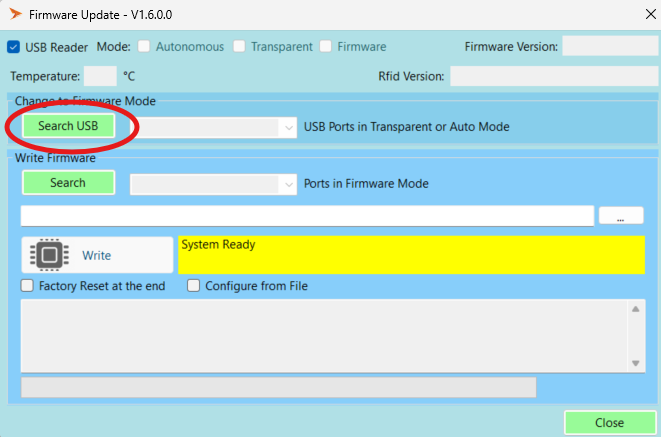
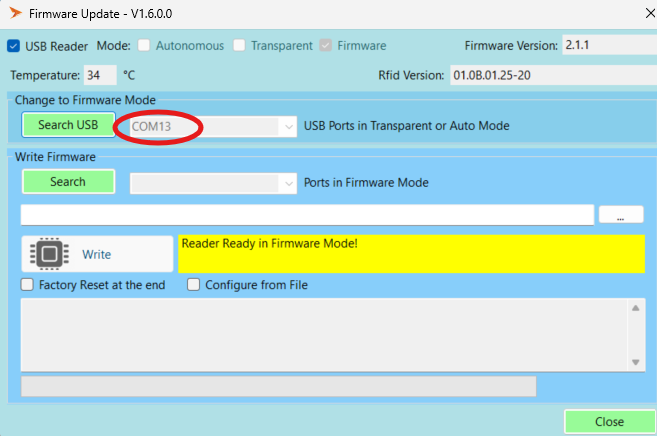
- The COM port will populate here:
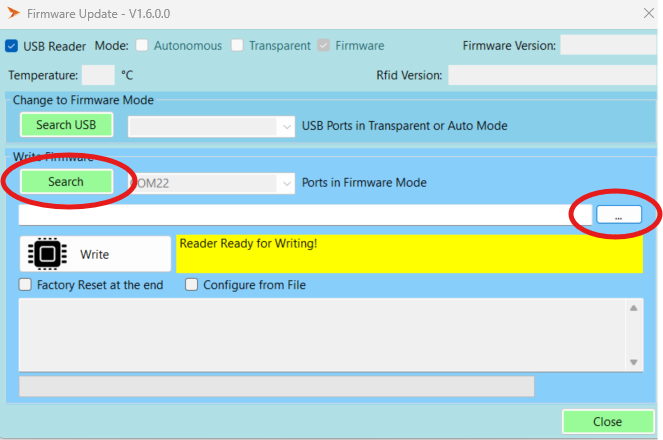
- Click "Search" and then click the three dots to select the firmware file
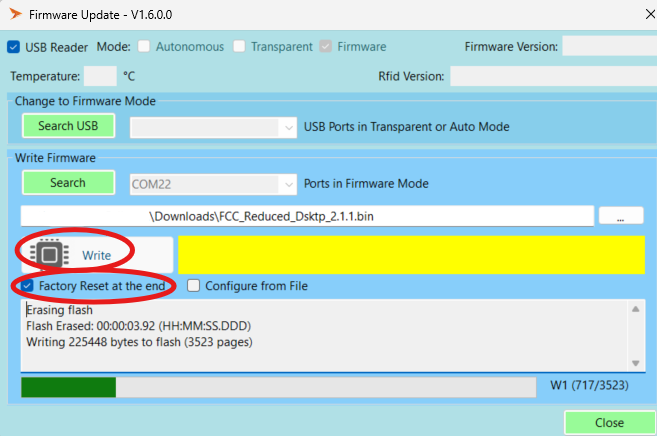
- Select "Factory Reset at the end" and then click "Write."
The update process will take about 60 seconds.
- Once you see the "Firmware Updated!" message, click "Close" to close the program.
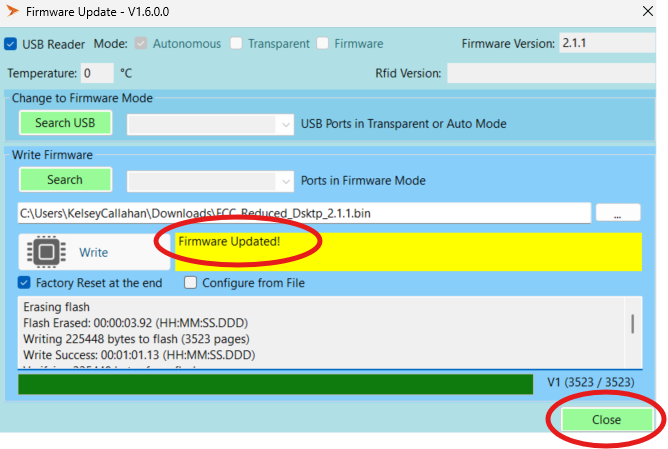
Remember that after the update, the reader will be fully factory reset and will be in Autonomous mode/keyboard emulation mode. You will need to re-apply any previous reader configurations.
For any questions or issues updating, please contact info@vulcanRFID.com.